# 使用虚拟背景插件 (/zh-CN/realtime-media/rtc/build/extensions/web/virtual-background)
> For AI agents: see the complete documentation index at [llms.txt](/llms.txt).
## 使用虚拟背景插件 [#使用虚拟背景插件]
声网提供虚拟背景插件 `agora-extension-virtual-background`,可以与 Web SDK(v4.15.0 或以上)搭配使用,能够将用户人像和背景分割开来,虚化用户周围的真实环境,或者以自定义颜色、图片、视频替代真实背景。虚拟背景插件适用于在线会议、在线教育、直播等场景,有助于保护个人隐私,也能避免杂乱背景对观众造成干扰。
点击[在线链接](https://webdemo.agora.io/example/plugin/virtualBackground/index.html)立即体验虚拟背景功能。
虚拟背景插件的效果如下:
| 功能 | 效果 |
| ---- | ---- |
| 虚化背景和图片背景 | 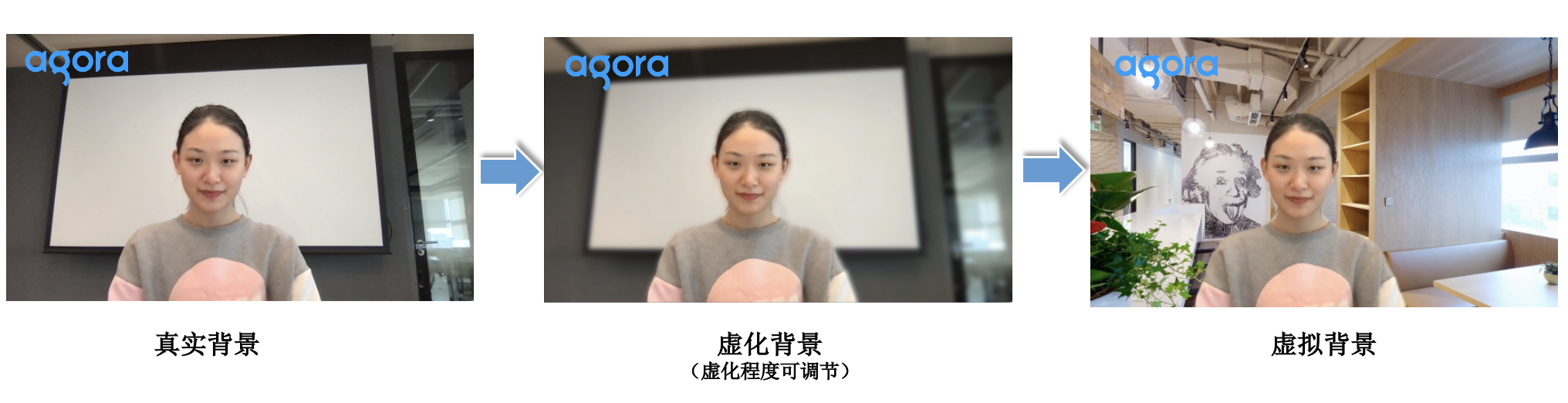 |
| 视频/动态背景 | |
## 实现原理 [#实现原理]
声网 Web SDK 的媒体传输管道包含采集、前处理、编码、传输、解码、后处理和播放等环节。在前处理阶段,插件可以对管道中的音视频数据进行处理,从而实现虚拟背景、降噪、美颜、语音活动检测等功能。
## 前提条件 [#前提条件]
使用虚拟背景插件需要满足以下前提条件:
- 使用最新版本的桌面端 Chrome 浏览器。
- 已集成 v4.15.0 或以上版本的 Web SDK,实现基础的实时音视频互动功能,具体参考[快速开始](../../../get-started/quick-start?platform=web)文档。
## 示例代码 [#示例代码]
以下是一段使用 AI 画质插件的完整代码,供开发者参考。
```typescript
import AgoraRTC from "agora-rtc-sdk-ng";
import VirtualBackgroundExtension from "agora-extension-virtual-background";
// 创建 Client
var client = AgoraRTC.createClient({mode: "rtc", codec: "vp8"});
// 创建 VirtualBackgroundExtension 实例
const extension = new VirtualBackgroundExtension();
// 注册插件
AgoraRTC.registerExtensions([extension]);
let processor = null;
var localTracks = {
videoTrack: null,
audioTrack: null
};
// 初始化
async function getProcessorInstance() {
if (!processor && localTracks.videoTrack) {
// 创建 VirtualBackgroundProcessor 实例
processor = extension.createProcessor();
try {
// 初始化插件
await processor.init();
} catch(e) {
console.log("Fail to load WASM resource!");
return null;
}
// 将插件注入 SDK 内的视频处理管道
localTracks.videoTrack.pipe(processor).pipe(localTracks.videoTrack.processorDestination);
}
return processor;
}
// 加入频道
async function join() {
// 添加事件监听
client.on("user-published", handleUserPublished);
client.on("user-unpublished", handleUserUnpublished);
[options.uid, localTracks.audioTrack, localTracks.videoTrack] = await Promise.all([
// 加入频道
client.join(options.appid, options.channel, options.token || null),
// 创建本地麦克风轨道和摄像头轨道
localTracks.audioTrack || AgoraRTC.createMicrophoneAudioTrack(),
localTracks.videoTrack || AgoraRTC.createCameraVideoTrack({encoderConfig: '720p_4'})
]);
// 播放本地轨道
localTracks.videoTrack.play("local-player");
}
// 设置纯色背景
async function setBackgroundColor() {
if (localTracks.videoTrack) {
document.getElementById("loading").style.display = "block";
let processor = await getProcessorInstance();
try {
processor.setOptions({type: 'color', color: '#00ff00'});
await processor.enable();
} finally {
document.getElementById("loading").style.display = "none";
}
virtualBackgroundEnabled = true;
}
}
// 将用户的实际背景虚化
async function setBackgroundBlurring() {
if (localTracks.videoTrack) {
document.getElementById("loading").style.display = "block";
let processor = await getProcessorInstance();
try {
processor.setOptions({type: 'blur', blurDegree: 2});
await processor.enable();
} finally {
document.getElementById("loading").style.display = "none";
}
virtualBackgroundEnabled = true;
}
}
// 设置图片背景
async function setBackgroundImage() {
const imgElement = document.createElement('img');
imgElement.onload = async() => {
document.getElementById("loading").style.display = "block";
let processor = await getProcessorInstance();
try {
processor.setOptions({type: 'img', source: imgElement});
await processor.enable();
} finally {
document.getElementById("loading").style.display = "none";
}
virtualBackgroundEnabled = true;
}
imgElement.src = '/images/background.png';
}
```
## 实现步骤 [#实现步骤]
:::warning[注意]
本节介绍如何使用**最新版本**虚拟背景插件。历史版本的实现步骤可能会有所不同,具体差异详见[插件发版说明](/zh-CN/realtime-media/rtc/build/extensions/web/release)。
:::
按照以下步骤集成虚拟背景插件并实现虚拟背景功能。
### 1. 集成插件 [#1-集成插件]
通过 npm 将虚拟背景插件 [agora-extension-virtual-background](https://www.npmjs.com/package/agora-extension-virtual-background) 集成到你的项目中。
1. 运行以下命令安装虚拟背景插件:
```bash
npm install agora-extension-virtual-background
```
2. 通过以下任意一种方式引入虚拟背景插件。
- 方式一:在 JavaScript 文件中加入以下代码引入。
```typescript
import VirtualBackgroundExtension from "agora-extension-virtual-background";
```
- 方式二:在 HTML 文件中通过 Script 标签引入。引入后即可在 JavaScript 文件中直接使用 `VirtualBackgroundExtension` 对象。
```html
```
### 2. 注册插件 [#2-注册插件]
调用 `AgoraRTC.createClient` 创建 Client 对象后,新建一个 `VirtualBackgroundExtension` 对象,然后调用 `AgoraRTC.registerExtensions` 并传入创建的 `VirtualBackgroundExtension` 对象,注册虚拟背景插件。
```typescript
// 创建 Client
var client = AgoraRTC.createClient({mode: "rtc", codec: "vp8"});
// 创建 VirtualBackgroundExtension 实例
const extension = new VirtualBackgroundExtension();
// 检查兼容性
if (!extension.checkCompatibility()) {
// 当前浏览器不支持虚拟背景插件,你可以停止执行之后的逻辑
console.error("Does not support Virtual Background!");
}
// 注册插件
AgoraRTC.registerExtensions([extension]);
```
### 3. 初始化插件 [#3-初始化插件]
1. 调用 `extension.createProcessor` 创建 `VirtualBackgroundProcessor` 实例。
```typescript
processor = extension.createProcessor();
```
2. 调用 `processor.init` 初始化插件。当资源加载或插件初始化失败时,该方法将抛出异常,应用可捕获该异常并进行相应处理。
```typescript
await processor.init();
```
3. 在创建本地摄像头视频轨道后,调用 [`videoTrack.pipe`](/zh-CN/api-reference/rtc/web/interfaces/ilocalvideotrack#pipe) 并指定 [`videoTrack.processorDestination`](/zh-CN/api-reference/rtc/web/interfaces/ilocalvideotrack#processordestination) 属性,将插件注入到 SDK 的媒体处理管道中。
:::warning[注意]
- 出于计算性能考虑,声网推荐在单个视频轨道上使用虚拟背景插件。
- 如果需要两个视频轨道用于预览,创建两个 `VirtualBackgroundProcessor` 实例即可。
:::
```typescript
localTracks.videoTrack.pipe(processor).pipe(localTracks.videoTrack.processorDestination);
```
### 4. 设置虚拟背景 [#4-设置虚拟背景]
调用 `processor.setOptions` 设置虚拟背景类型和相应参数。支持以下设置:
- 设置纯色背景:将 `type` 参数设为 `"color"`,然后设置 `color` 参数指定颜色。
```typescript
processor.setOptions({type: 'color', color: '#00ff00'});
```
- 设置图片背景:将 `type` 参数设为 `"img"`,然后设置 `source` 参数指定图片对象。
```typescript
processor.setOptions({type: 'img', source: HTMLImageElement});
```
- 将用户的实际背景虚化:将 `type` 参数设为 `"blur"`,然后设置 `blurDegree` 参数指定虚化程度为低 (`1`)、中 (`2`)、高 (`3`)。
```typescript
processor.setOptions({type: 'blur', blurDegree: 2});
```
- 设置动态背景:将 `type` 参数设为 `"video"`,然后设置 `source` 参数指定视频对象。
```typescript
processor.setOptions({type: 'video', source: HTMLVideoElement});
```
### 5. 开启插件 [#5-开启插件]
调用 `processor.enable` 开启虚拟背景功能:
```typescript
await processor.enable();
```
如果调用此方法前未调用 `setOptions`,SDK 默认开启背景虚化效果,虚化程度为 1。开启虚拟背景后,如需切换虚拟背景效果,直接调 `setOptions` 即可。
### 6. 关闭插件 [#6-关闭插件]
需要暂时关闭虚拟背景时,调用 `processor.disable` 方法。
```typescript
await processor.disable();
```
确定不再使用虚拟背景时,调用 [`videoTrack.unpipe`](/zh-CN/api-reference/rtc/web/interfaces/ilocalvideotrack#unpipe),将插件从当前视频轨道上移除。
```typescript
localTracks.videoTrack.unpipe();
```
:::info[信息]
如果需要再次开启虚拟背景,复用已有的 `VirtualBackgroundProcessor` 实例即可,不需要重新创建。如果创建了多个 `VirtualBackgroundProcessor`,建议调用 `processor.release` 方法释放不再需要的插件资源。
:::
## 开发注意事项 [#开发注意事项]
- 声网背景分割算法对一个摄像头画面里出现单人的分割效果最佳。
- 虚拟背景插件的浏览器支持如下:
- 支持桌面端 Chrome 91 以上版本。为了获得更好的虚拟背景体验,声网推荐使用桌面端 Chrome 最新版。
- 不建议在 Firefox 和 Safari 上开启虚拟背景。Firefox 切后台可能导致画面冻结;Safari 上由于浏览器自身性能问题,效果不佳。
- 不建议在移动端上开启虚拟背景。
- 虚拟背景插件对设备性能要求较高,声网建议满足以下要求(通过 [navigator.hardwareConcurrency ](https://developer.mozilla.org/en-US/docs/Web/API/Navigator/hardwareConcurrency) 和 [navigator.deviceMemory ](https://developer.mozilla.org/en-US/docs/Web/API/Navigator/deviceMemory) 可以分别获取设备的 CPU 逻辑内核数和系统 RAM 大小):
- Intel Core i5 4 核或以上的处理器
- RAM 8GB 或以上
- 64 位操作系统
- 使用虚拟背景插件时,建议为笔记本电脑选择性能模式或平衡模式,在电源管理节能模式下的性能可能无法满足计算要求。
- 虚拟背景插件自 v1.0.0-beta-3 起支持使用视频作为动态虚拟背景。视频必须为 HTML `